Copy-Paste and Sound from Windows Remote Desktop to Mac
When you reach a Mac from Windows Remote Desktop (mstsc), copy and paste and sound each need a switch on both sides: one in Remote Desktop Connection on Windows, one in the RDPyon menu on the Mac. This page shows where both are, and what to check when text will not paste or the Mac stays silent.
What works with Windows Remote Desktop to a Mac
In RDPyon 1.0.3 the clipboard carries text, images and files over the normal Remote Desktop clipboard channel. Copy on one side, paste on the other.
Sound goes one way: the Mac's audio plays on the Windows PC. Using the Windows microphone on the Mac is not in 1.0.3.
Sound needs macOS 13 or later on the Mac. After you change a setting on either side, reconnect before you test.

On the Mac: check two menu items
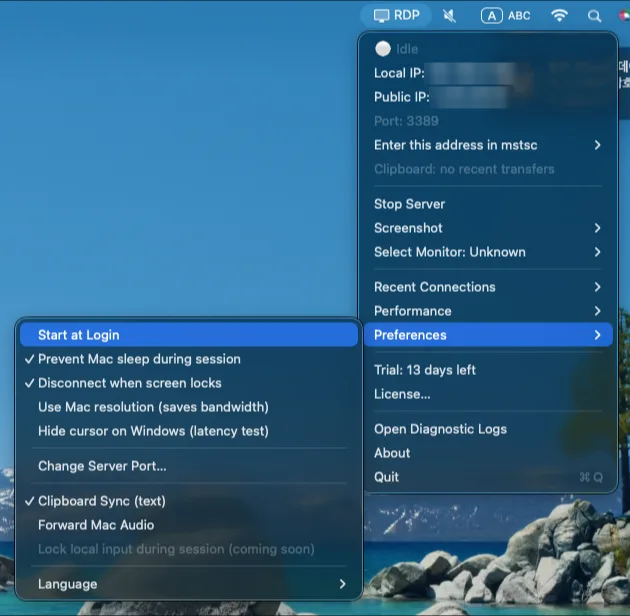
Click the RDP icon in the Mac menu bar and open Preferences. Two items matter here: Clipboard Sync (text) and Forward Mac Audio. A tick means the item is on. Both are on by default, but check the tick instead of assuming, as the picture shows one that is off.
The word "text" in the first label is the menu's wording. Images and files use the same switch, so if it is off, none of them cross.
On a Mac older than macOS 13, Forward Mac Audio is greyed out and cannot be turned on.
On Windows: turn on clipboard and audio in mstsc
Open Remote Desktop Connection and click Show Options at the bottom left. Go to the Local Resources tab.
Under Remote audio, click Settings and choose Play on this computer. Under Local devices and resources, tick Clipboard.
Go back to the General tab, enter the Mac's address, and connect. The choices are read when the connection starts, so a session that was already open has to be closed and opened again. Use Save on the General tab to keep the choices for next time.
If copy and paste does not work
First, in mstsc Local Resources, confirm Clipboard is ticked, then disconnect and connect again.
Second, on the Mac, confirm Clipboard Sync (text) has a tick, then reconnect, because it is applied when a session starts.
Third, copy again. After you copy on the Mac, the RDPyon menu shows the last clipboard transfer, so you can see whether the Mac side handed the data over. If it says the transfer failed, copy the item once more.
If there is no sound
Check the Windows side first: Remote audio must be Play on this computer, and the Windows volume and the output device you hear from must be on. The volume you hear is the Windows PC's, not the Mac's, so turning up the Mac does not help.
Then on the Mac, confirm Forward Mac Audio has a tick and that the Mac is on macOS 13 or later. Reconnect and play something on the Mac.
If sound only plays when the Mac is playing something, that is expected: the Windows PC receives what the Mac is playing.
Frequently asked questions
Why does copy and paste not work in Remote Desktop to my Mac?
Either the Clipboard box is not ticked under Local Resources in mstsc, or Clipboard Sync (text) is off in the RDPyon menu on the Mac. Check both, then disconnect and connect again.
Can I hear the Mac's sound on Windows Remote Desktop?
Yes, in RDPyon 1.0.3 when the Mac runs macOS 13 or later. Set Remote audio to Play on this computer in mstsc and tick Forward Mac Audio in the RDPyon menu.
Can I use the Windows microphone on the Mac?
Not in version 1.0.3. Sound goes from the Mac to the Windows PC only.
Checked November 2026 against RDPyon 1.0.3.
Related pages
See pricingFull step-by-step guide: Windows to Mac Remote DesktopRDP server for MacMac Screen Sharing slow from Windows
Google, Chrome Remote Desktop, TeamViewer, AnyDesk, Apple, macOS, Screen Sharing, and Tailscale are trademarks of their owners. HS Solution is not affiliated with them.
Related guides
Mac mini from WindowsWindows to Mac Remote DesktopConnect to your Mac from outside